
The Asus ProArt P16 pairs Nvidia’s RTX Spark, with a 6,144-core Blackwell GPU, a 20-core Grace CPU, and 64 GB of memory, in a premium 16-inch OLED laptop. Early testing covered local AI, Blender 5.3 beta rendering, and battery performance. The hardware is strong, especially on the GPU side; the Windows-on-Arm software ecosystem is mature for general-purpose compute, and still has maturing to do regarding specialized applications.
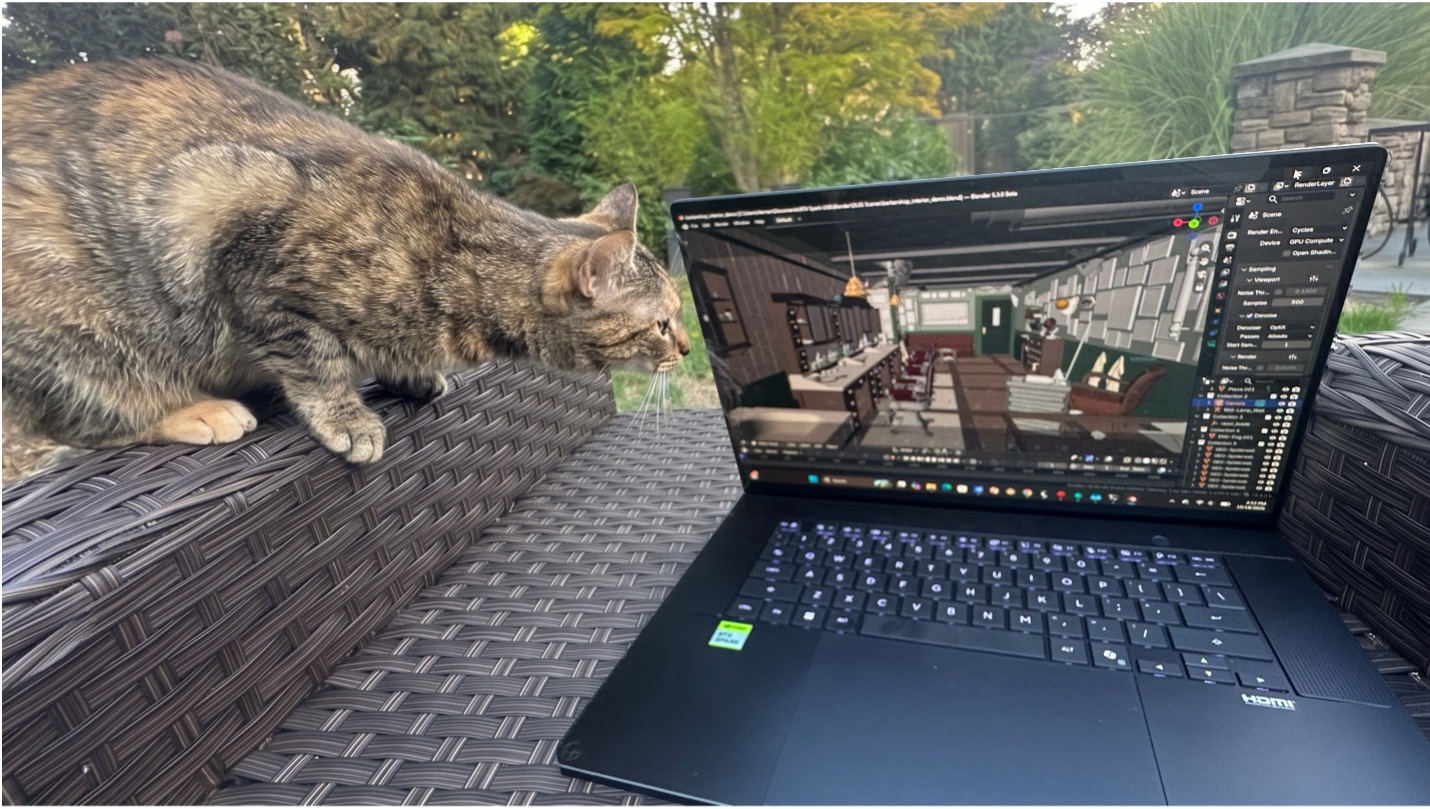
First sighting of RTX Spark (Asus ProArt P6) out in the wild. (Source: JPR)
Nvidia provided a unit to JPR for evaluation ahead of the October 16 launch—the Asus ProArt P16 H7607BA in Nano Black, running Windows 11 Pro (Arm), with 64 GB of LPDDR5X memory and a 1 TB PCIe 4.0 SSD. As configured, it costs $4,399.99, according to the Asus website. Elevated memory costs across the industry have pushed price points up generally, which is worth keeping in mind at this capacity.
Inside is the RTX Spark N1X, the first consumer SoC from Nvidia targeted at laptop and desktop PCs running Windows on Arm. Our system readout shows the full configuration: a 6,144-core Blackwell GPU and a 20-core Grace CPU sharing the 64 GB pool.
For background on the platform, see our earlier RTX Spark coverage:
• Nvidia’s RTX Spark to fuel Adobe creative apps
• Nvidia RTX Spark: A new beginning for Windows PCs
• RTX Spark laptops have arrived, aimed at the x86 halo
• Microsoft wants Windows to be the safest place to run AI agents
First impressions
The P16 is a black aluminum notebook that looks and feels premium. The keyboard and speaker layout reminded us of a MacBook Pro, and it is one of the most elegant notebooks we have used. It is thin, but Asus prioritized performance and features over record-setting thinness and weight. The display is a 16-inch 3K (2,880×1,800) OLED running at 120 Hz. Asus rates it at 100% DCI-P3 and DisplayHDR True Black 1000, with 500 nits brightness and 1,100 nits HDR peak, and it supports touch and an optional stylus accessory. In use, it is gorgeous. Port selection is generous: three USB4 Type-C ports, one USB-A, a full-size HDMI, a full-size SD card reader, and an audio jack. All three USB-C ports accept charging, so you can plug in from whichever side is convenient. The trackpad is massive and sensitive in a good way, and the haptic click is responsive. Key travel is 1.7mm, per Asus.
The laptop arrived in an eco-friendly cardboard shipper with a presentation box inside, a compact 140 W power brick, and a carry sleeve. Our box also held the Asus ProArt Mouse MD301 in its own presentation box. Accessories vary by country. A quality mouse matters in creative applications, where precision and long sessions are the norm, and bundling one is a smart way for Asus to stand apart from other OEMs.
Asus says the mouse is tri-mode, supporting USB wired, a 2.4 GHz dongle, and Bluetooth, with 8,000 dpi tracking. We only tested Bluetooth, where it worked flawlessly. The wheel feels refined, it fits a palm grip well, and it stayed comfortable through long 3D modeling sessions, with default settings and no software installed. We did not test the Gear Link software, programmable buttons, or wired modes.
Two usability notes
OLED panels can raise flicker questions at low brightness, so we checked on that. The MyASUS app includes an OLED Flicker-Free Dimming feature that tells users to fix Windows brightness above 60% and then use the MyASUS slider instead (Figure 1). With Windows brightness fixed at 60% and the slider at its lowest setting (0), we didn’t notice flicker. The friction is the workflow. The control lives in a separate app rather than in Windows, and the keyboard’s brightness keys adjust the Windows slider, so they work against Asus’ own guidance. This seems like the kind of thing that could be fixed with an email or a 15 minute call between Asus and Microsoft.

Figure 1. MyASUS OLED Flicker-Free Dimming control. (Source: JPR)
MyASUS also shows how the 64 GB pool is divided (Figure 2). Since the main usage of this system is local AI, the Recommended setting is set at 50% slider position, the graphics memory screen lists 31.8 GB hardware reserved, with 30.5 GB of dedicated graphics memory inside that block, plus 16.2 GB of shared memory. Together, that gives the GPU access to about 46.7 GB of the 64 GB, and users can move the slider to change the shared allocation.

Figure 2. MyASUS graphics memory allocation at the Recommended setting. (Source: JPR)
Local AI
The Windows Get Started wizard installs AI agent apps from the Microsoft Store (Figure 3). We used it to install Hermes Agent, from Nous Research, and OpenClaw; neither came pre-installed.
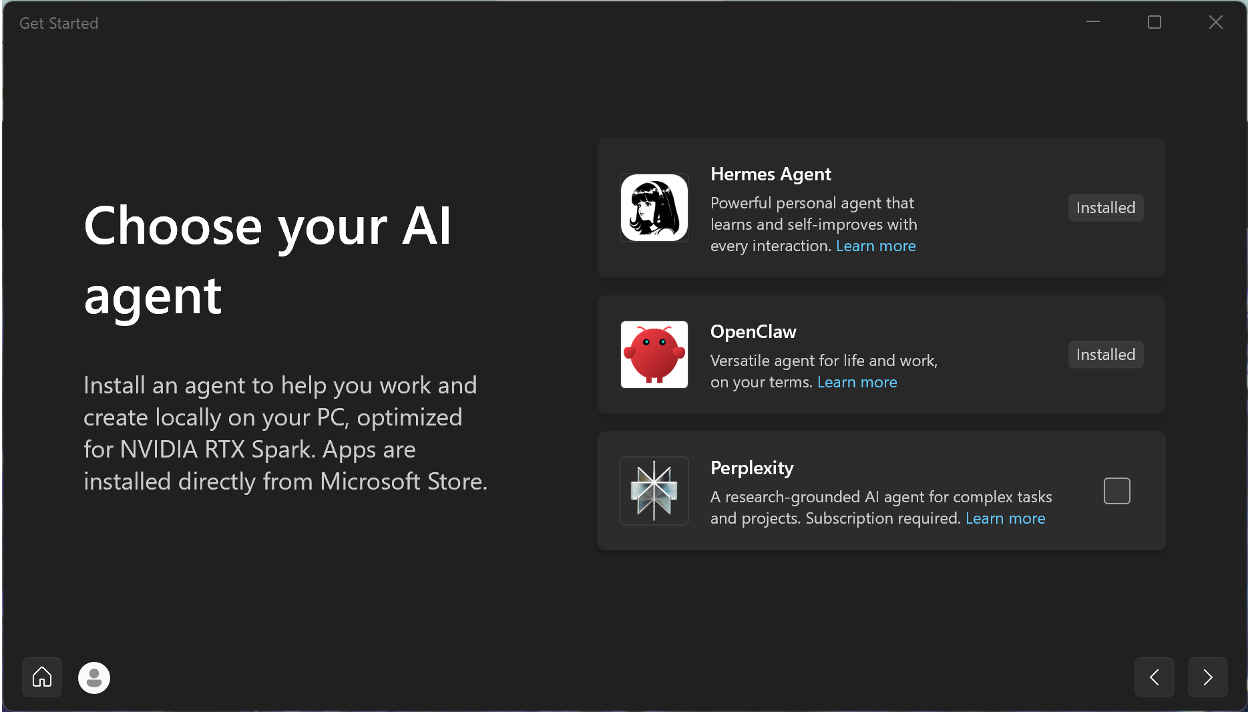
Figure 3. MyASUS Get Started wizard for installing AI agent apps. (Source: JPR)
Models are downloaded separately. Hermes then showed us a short list of models suited to the system, factoring in RTX Spark optimizations and model size—a helpful touch for newcomers.
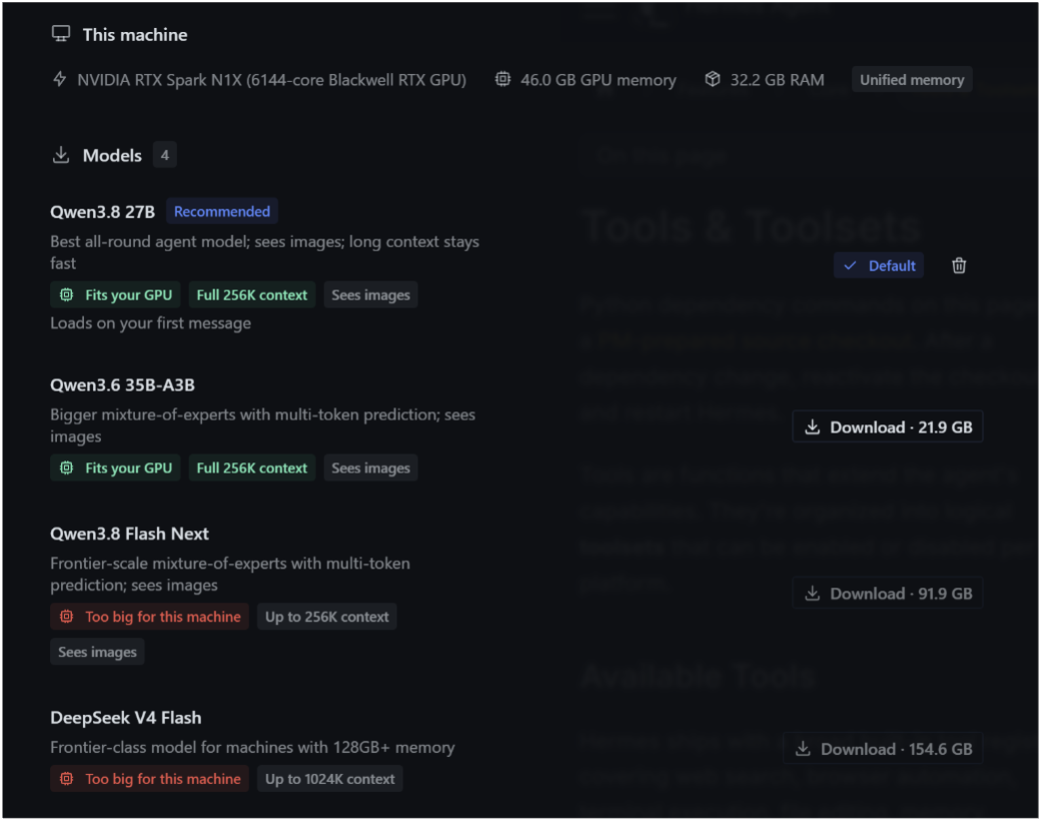
Figure 4. Hermes model recommendation and download manager. (Source: JPR)
We ran Qwen3.8-27B, a 27 billion-parameter open model, as the file Qwen3.8-27B-UD-Q4_K_M—about 17 GB. UD refers to Unsloth Dynamic quantization, which keeps important layers at higher precision, and Q4_K_M is a four-bit format used by llama.cpp-based tools. We used the Recommended 50% preset without manual tuning, and the file sits well under the roughly 46.7 GB the GPU can reach.
Prefill, the prompt-processing stage, was the slowest part of the pipeline. Once generating, output arrived faster than we can read, which we found very usable. We did not measure performance, since the point of RTX Spark is the capability—the fact that you can now run these models on a Windows machine, without a discrete GPU. Such discrete GPU is expected to win in performance, due mostly to its massive memory bandwidth, as long as the model and context window fits in VRAM. With up to 6,144 CUDA cores, RTX Spark (and DGX Spark) bring bigger memory pools that enable the capability of bigger models and context, but with limited memory bandwidth. RTX Spark is rated at 1 PFLOPS FP4 AI performance.
To stress the system, we ran Hermes with that model while Cinebench 2026 loaded the CPU, with GPU load above 95%. The laptop was stable over about 10 minutes of combined load. The fans spun up, as expected, but the noise was moderate. That is too short to call sustained, but performance was stable during the tests. Longer runs are next.
Compatibility and power
Every app we used had a native Arm64 version, including the Blender 5.3 beta, so we haven’t needed or tested Prism, Microsoft’s x86 emulation layer—we may do that in a future review. At sleep and wake, Windows Hello, the touchscreen, and the speakers all worked as expected. We have not tested battery life, but at a high level, the system sips power on general productivity tasks and drains a lot of power when high compute tasks are needed. More details about performance on battery below.
On the topic of power, I wish modern laptops would have an option to sip power from the wall just to maintain the charge. This is because if you travel with an RTX Spark, or any powerful mobile workstation, on an airplane, you currently have to buy another AC power adapter that is <100 W. The first thing I did when flying back from the RTX Spark event in San Francisco was to plug it in to the airplane power connector, and it immediately protected itself. I have done this test with 90 W, 130 W, 140 W, and 230 W power adapters for high-performance laptops and mobile workstations and the only one that works on a plane is the 90 W. Below that, many mobile workstations don’t charge, and above that, many airplanes protect themselves. I understand that I should probably not render or simulate particles on a plane, but I wish I could stay functional to do basic browser or general productivity work. A curious fact: An Apple M(x) Max Macbook Pro adapter works just fine.
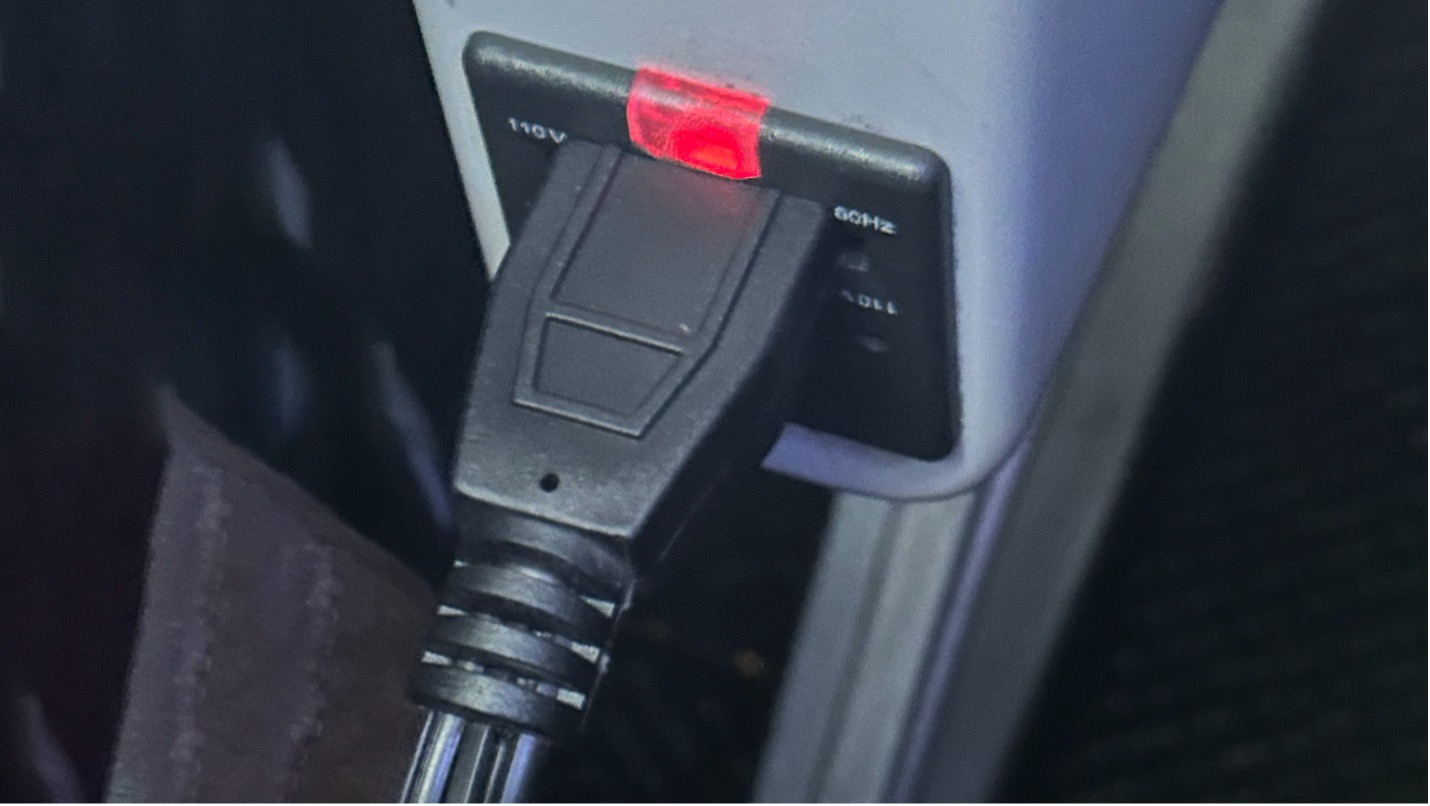
Figure 5. Asus ProArt P16’s 140 W power adapter immediately disabled by the airplane outlet. (Source: JPR)
3D rendering and denoising
Having this powerful machine, I couldn’t resist putting to use my second degree in 3D modeling and animation. I did basic 3D modeling and rendering in the Blender 5.3 beta, a native Arm64 build. Blender’s homepage says the beta is ready for RTX Spark, with DLSS denoising and Gaussian splatting support among its additions (Figure 6).

Figure 6. The Blender 5.3 beta homepage banner announcing RTX Spark support. (Source: Blender)
The DLSS denoiser option was present but needed manual setup. We had to download a missing DLL from Nvidia’s GitHub before it worked. That is a beta rough edge, not a blocker, but early adopters should expect it.
Once running, DLSS changed how the viewport behaves. We compared the same view with denoising off, with Open Image Denoise, with OptiX, and with DLSS (Figure 7). DLSS was the clear winner, and the difference against no denoising was night and day. For modeling and animation playback, we consider it a complete game changer.
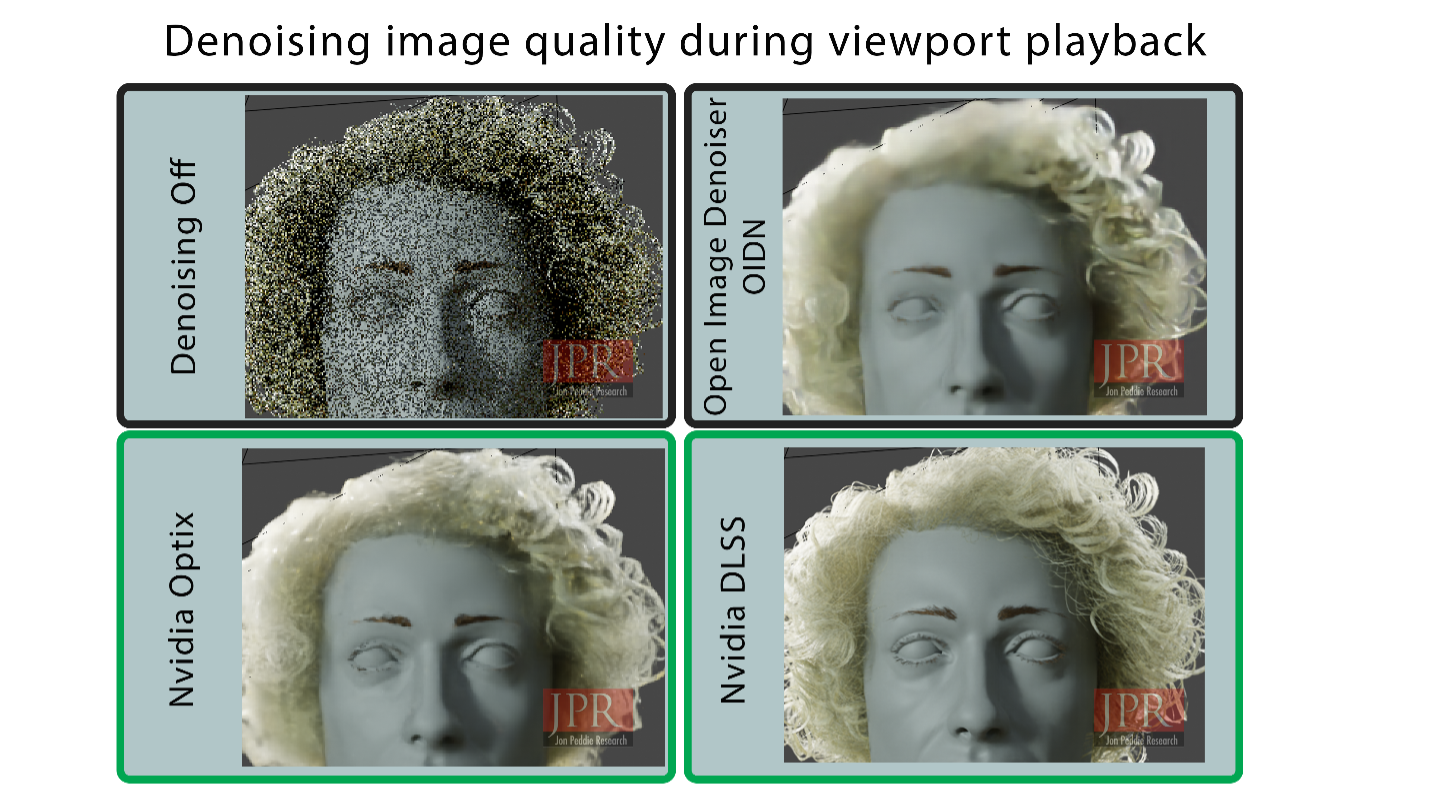
Figure 7. Viewport quality during playback with denoising off, Open Image Denoise (OIDN), OptiX, and DLSS. (Source: JPR)
We then rendered the same scene across five Cycles configurations (Table 1 and Figure 8). The CPU alone took 16 minutes 55 seconds. The GPU alone took 2 minutes 48 seconds with CUDA, and 1 minute 34 seconds with OptiX, making OptiX about 11 times faster than the CPU. The surprise is that adding the CPU to the GPU made things slower, not faster. CPU plus GPU took 3 minutes 3 seconds with CUDA, and 2 minutes 1 second with OptiX, so the best result came from OptiX on the GPU alone.

Table 1. Cycles render times across five configurations, same scene. (Source: JPR)
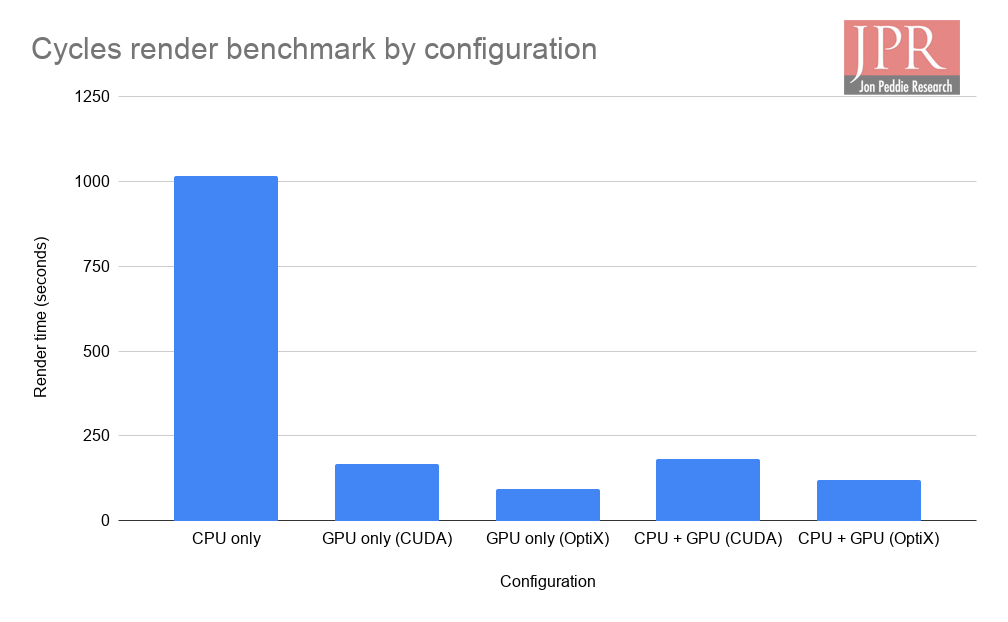
Figure 8. Cycles render time by configuration, in seconds. (Source JPR)
We also checked power behavior. A full render of a complex scene, with the GPU using OptiX denoising, took 5 minutes 41 seconds on AC power and 5 minutes 44 seconds on battery, or 99% of the performance on AC power (Figure 9). A three-second difference suggests the P16 doesn’t meaningfully throttle on battery during sustained GPU rendering, which sets it apart from many thin-and-light laptops. This is a performance test, not a battery-life test, and it’s clear that high compute workloads will drain the battery fast.
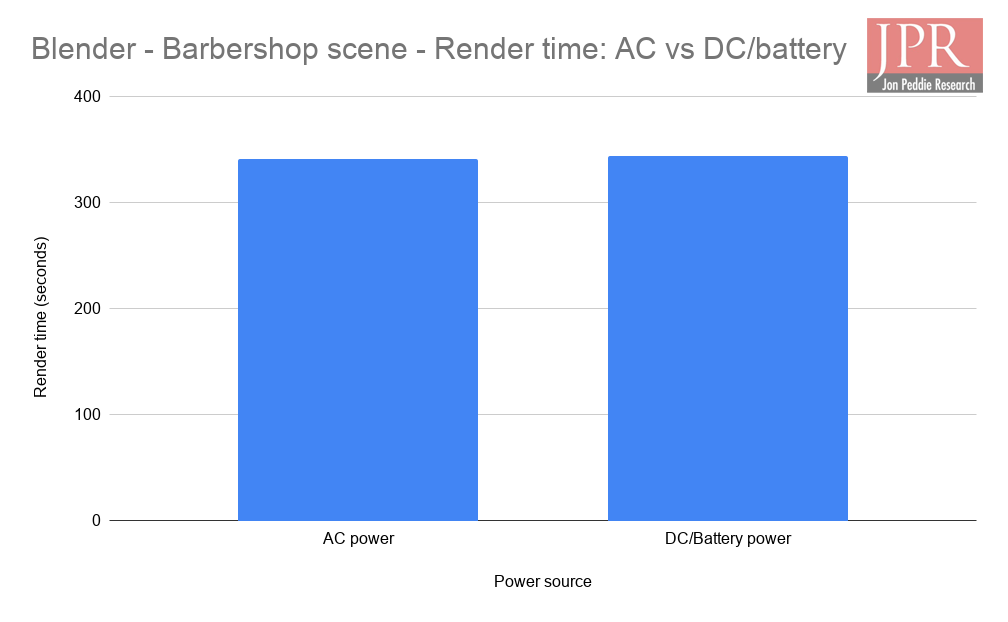
Figure 9. Render time on AC power versus battery power, in seconds. (Source: JPR)
There you have it, we have covered several aspects of the Nvidia RTX Spark, proudly represented by the Asus ProArt P16. As you can tell by now, there is a lot to explore on a platform so disruptive and powerful, and the disruption is just getting started. We spent some time thinking about the possibilities and the potential roadmap ahead.
What do we think?
RTX Spark is finally here, and it hit the ground running—it’s a powerful platform, but it’s not for everybody, in part because of cost, in part because of how powerful it is. It’s a first-generation product, and with that comes the improvements that the platform will have over the next years and generations. I’m fully convinced that Nvidia is already planning the next generation with all the learnings from DGX Spark, and now RTX Spark.
The Asus ProArt P16 is a premium, well-rounded machine for a broad audience of creators and developers exploring AI-enhanced workflows, local model development, and media and entertainment work. The screen, ports, and color accuracy support that case.
Users looking for hardware for professional 3D modeling, compositing, and classic workstation workflows in AEC and product development & manufacturing should stick with mature x86 (Intel/AMD) plus Nvidia platforms, mainly for five reasons:
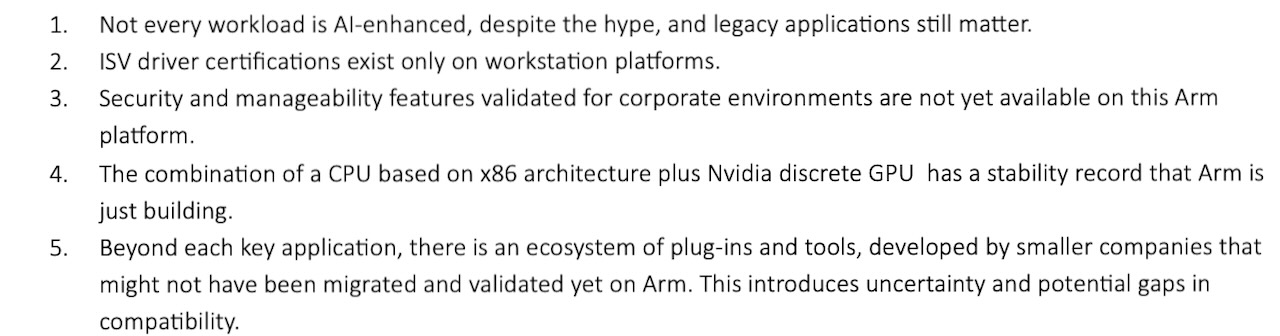
The hardware is not the limitation. In raw performance, the P16 is more powerful than many existing mobile workstations, especially thin-and-light ones. The gap is software ecosystem maturity. It isn’t fair to call this a workstation until the Arm64 Windows ecosystem catches up in application validation, debugging, and polish. Apple Silicon followed that arc, and we expect the same trajectory here as more apps are enabled, validated, and polished for Arm64. The open question is whether Nvidia will pursue formal professional and ISV certifications for the platform. So far, kudos to Nvidia for being transparent and not overpromising this platform’s capabilities.
Next, we plan to explore pairing Blender with an MCP connector, letting an AI model or agent interact with Blender, either through us in a chat or autonomously, combined with ComfyUI. We think that kind of capability is producing a new AI-enhanced animation workflow that may appeal more to a new tier of users than to native 3D artists. It might not be a good fit for professional studios, but rather a powerful tool for enthusiast creating short-form media. Worth to say that putting this wonderful technology in untalented hands is a recipe for AI-slop, but I can’t wait to see what talented minds do as this platform is democratized. There is also a point to be made about form factor: With RTX Spark, AI is moving from full-size towers to mini PCs, and now it brings to consumers the AI-capable mobile platforms, with the Nvidia CUDA software ecosystem, which, so far, only mobile workstation users have enjoyed.
The Blender rendering data points to a bigger shift. GPU acceleration has changed rendering economics so much that very high-core-count CPUs are losing relevance for parallel workloads like rendering. In theory, the CPU should add to a hybrid CPU-plus-GPU render. In practice, it slowed our results, and we call it out in hopes that Blender’s and Nvidia’s engineers look into understanding this performance regression. As the trend continues with Renderman XPU, Karma XPU, Cycles, and other renderers, what will matter in future CPUs is strong per-core performance and a moderate core count, not ever-higher core counts, since parallel work is increasingly GPU-dominated.
– The Workstation Cavalry
AND IF YOU LIKED WHAT YOU READ HERE, DON’T BE STINGY, SHARE IT WITH YOUR FRIENDS.
Disclaimer: This article is not financial advice. The content is for informational purposes only. The author may own shares in companies mentioned, and readers should not consider this article a recommendation to buy, sell, or hold any assets.